How to Add a Link to Text in a Table in a Linear Document
In this article
Learn how to embed hyperlinks within text in tables inside your Linear project documents. This guide will walk you through selecting text and inserting a URL.
Explore more Linear tutorials with interactive Saltfish walkthroughs.
Here's how to add a link to text in Linear
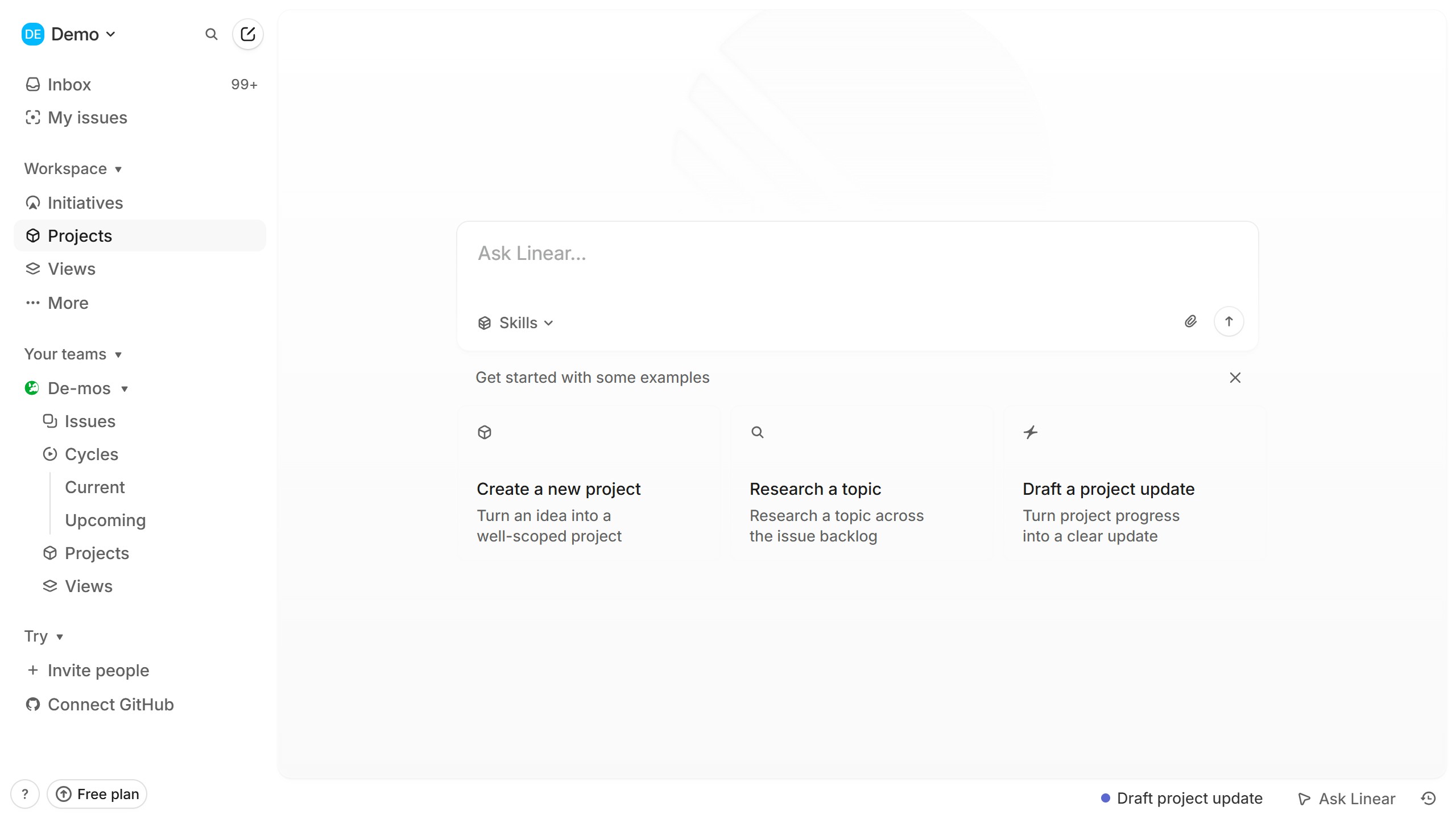
- Access Your Projects
Navigate to the "Projects" section from the sidebar to view all your active projects.
- Open a Project
Select the specific project that contains the document you wish to edit.
- Navigate to the Document
Within the project overview, click on the relevant document link listed under the "Resources" section.
- Select Text for Linking
Inside the document, highlight the specific text within a table cell that you want to convert into a hyperlink.
- Insert the Link
Click the chain-link icon in the formatting toolbar that appears, then paste or type your desired URL into the provided input field.
Your turn to show how it works.
Build a walkthrough of your product with Saltfish, then share it with your customers.
Frequently Asked Questions
You can select text by clicking and dragging your cursor over the desired words within any cell of the table in your Linear document.

 Linear