How to Add a Bulleted List to a Table in a Linear Document
In this article
This guide will show you how to format text within a table in a Linear document as a bulleted list. This can help organize information and improve readability within your project updates.
Explore more Linear tutorials with interactive Saltfish walkthroughs.
Here's how to add a bulleted list to a table in Linear
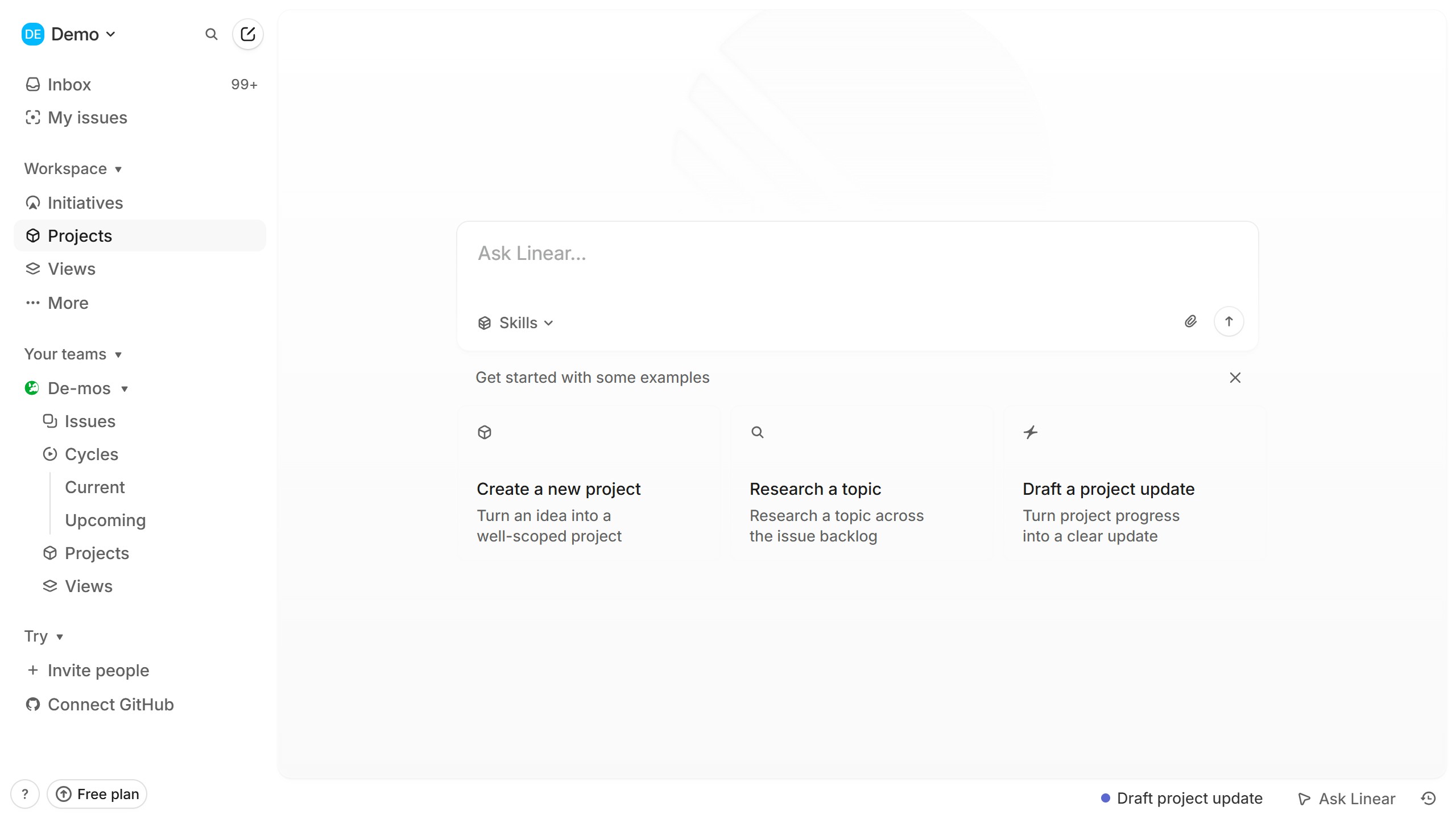
- Navigate to Projects
Begin by clicking on the 'Projects' option located in the left sidebar of your Linear interface. This will display a list of all your available projects.
- Select a Project
From the list of projects, click on the name of the specific project that contains the document you wish to edit.
- Open the Project Document
Within the selected project's overview, locate the 'Resources' section and click on the document link to open it for editing.
- Highlight Text in Table
Inside the document, find the table and highlight the specific text within a cell that you want to convert into a bulleted list.
- Access List Formatting Options
A formatting toolbar will appear above the highlighted text. Click on the dropdown icon that represents list formatting.
- Apply Bulleted List Format
From the dropdown menu, select the 'List' option. Your highlighted text will instantly transform into a bulleted list within the table cell.
Your turn to show how it works.
Build a walkthrough of your product with Saltfish, then share it with your customers.
Frequently Asked Questions
Yes, after clicking the list dropdown icon, you will see an option for 'Numbered list' which you can select to apply numbered formatting.

 Linear