
How to Add an Image to a Document in Linear
In this article
This guide will show you how to add an image to a document within a project in Linear. Images can help clarify information and make your project documentation more engaging.
Explore more Linear tutorials with interactive Saltfish walkthroughs.
Here's how to add an image to a document in Linear
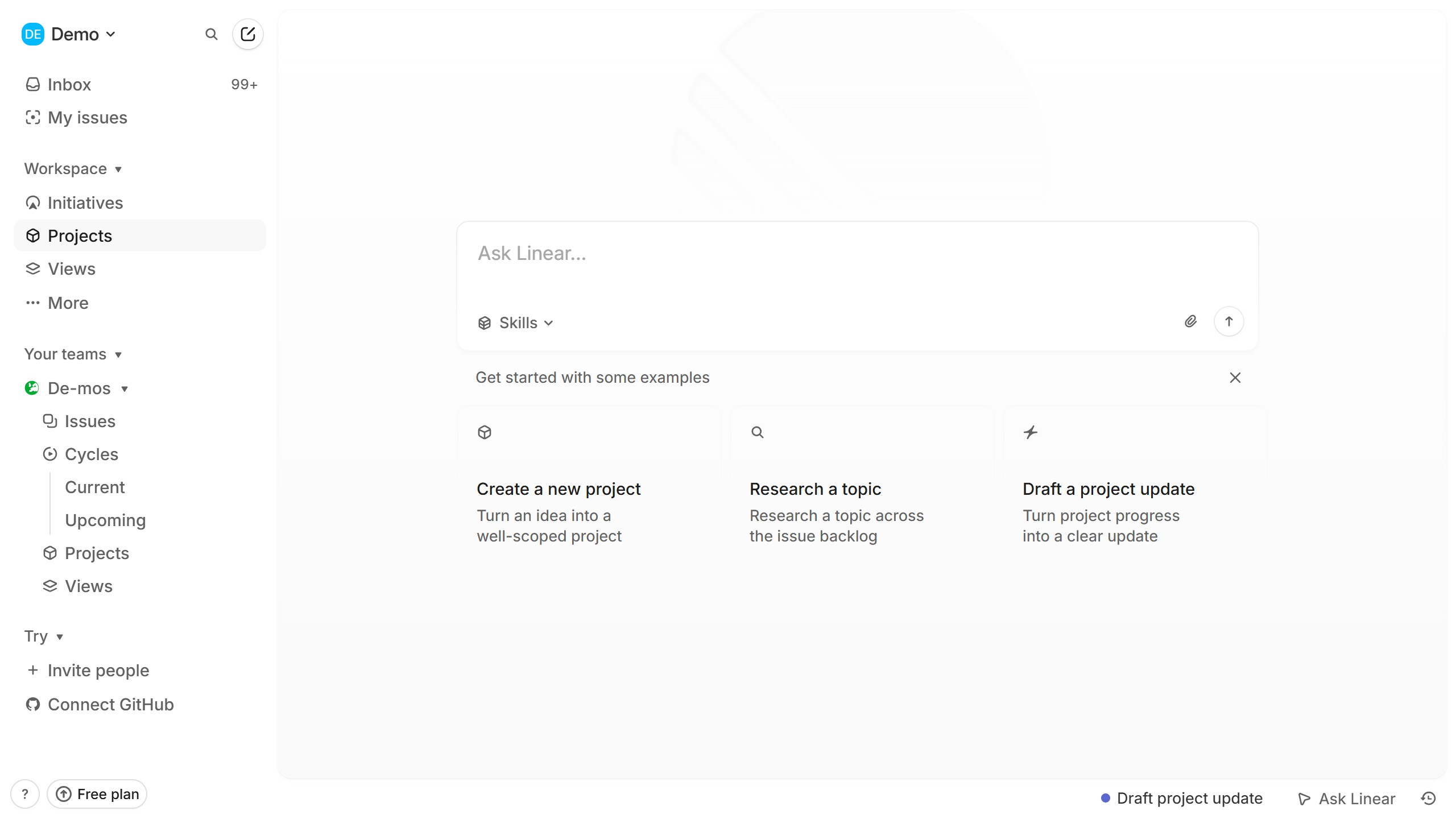
- Navigate to Projects
Begin by clicking on the "Projects" option located in the left-hand sidebar of your Linear interface. This will display a list of all your available projects.
- Select a Project
From the list of projects, click on the name of the specific project that contains the document you wish to edit.
- Open the Document
On the project's overview page, locate the "Resources" section and click on the link for the document where you want to add an image.
- Initiate Image Insertion
Inside the document, click on the content area where you want the image to appear. Type "/image" to trigger the media insertion command.
- Insert Media
A small pop-up with "Insert media..." will appear. Click this option to open your file browser and select the image you want to upload.
- Confirm Image Insertion
After selecting your image, it will be automatically inserted into your document. Review the document to ensure the image is placed correctly.
Your turn to show how it works.
Build a walkthrough of your product with Saltfish, then share it with your customers.
Frequently Asked Questions
First, navigate to the "Projects" section from the sidebar. Then, select your desired project and click on the document link listed under "Resources".
 Linear
