How to Add a New Task in Zoom
In this article
Learn how to create and organize new tasks within Zoom's task management feature. This guide will walk you through the steps to add a task, assign details, and save it to your list.
Explore more Zoom tutorials with interactive Saltfish walkthroughs.
Here's how to add a new task in Zoom
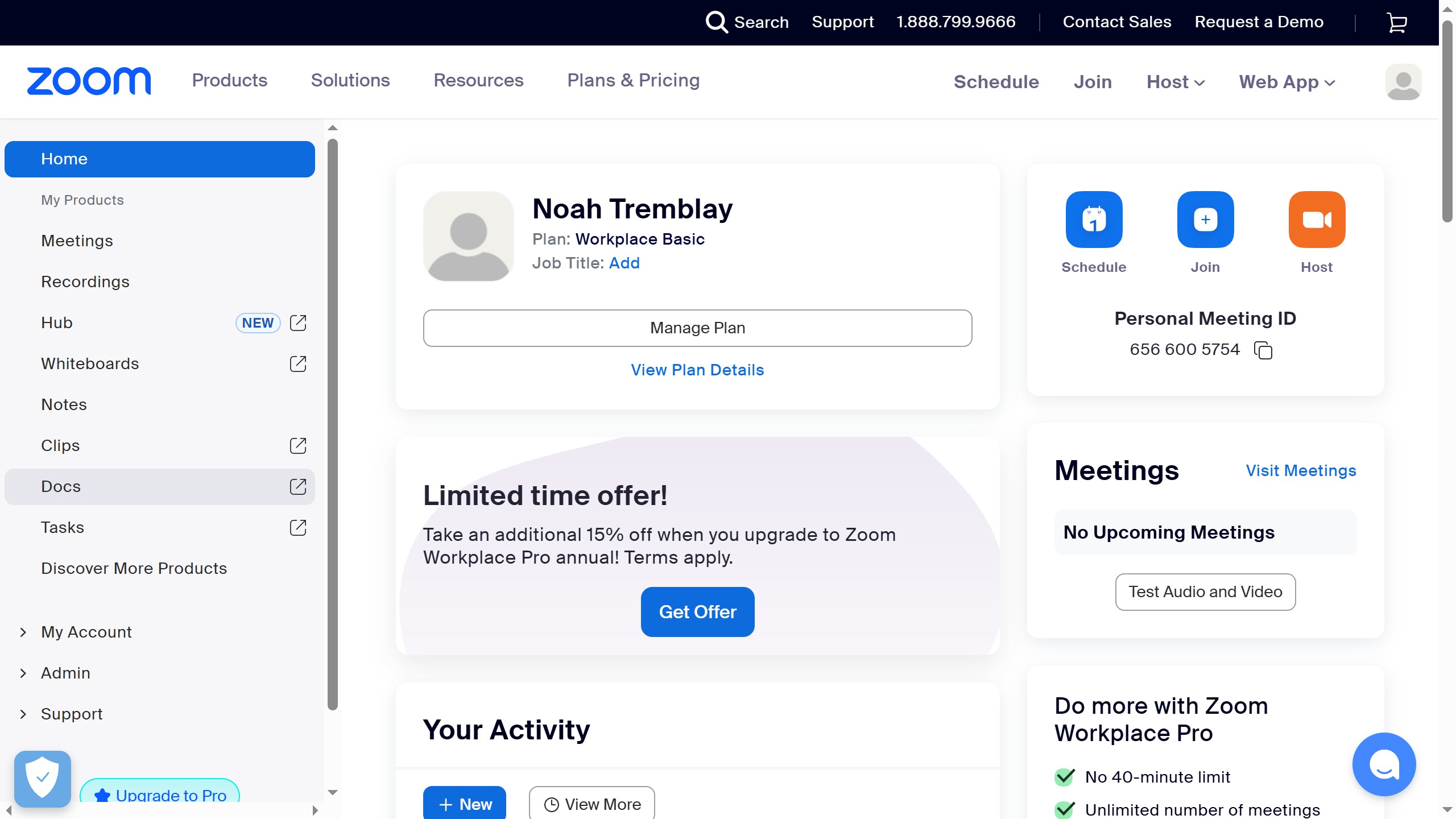
- Navigate to Tasks
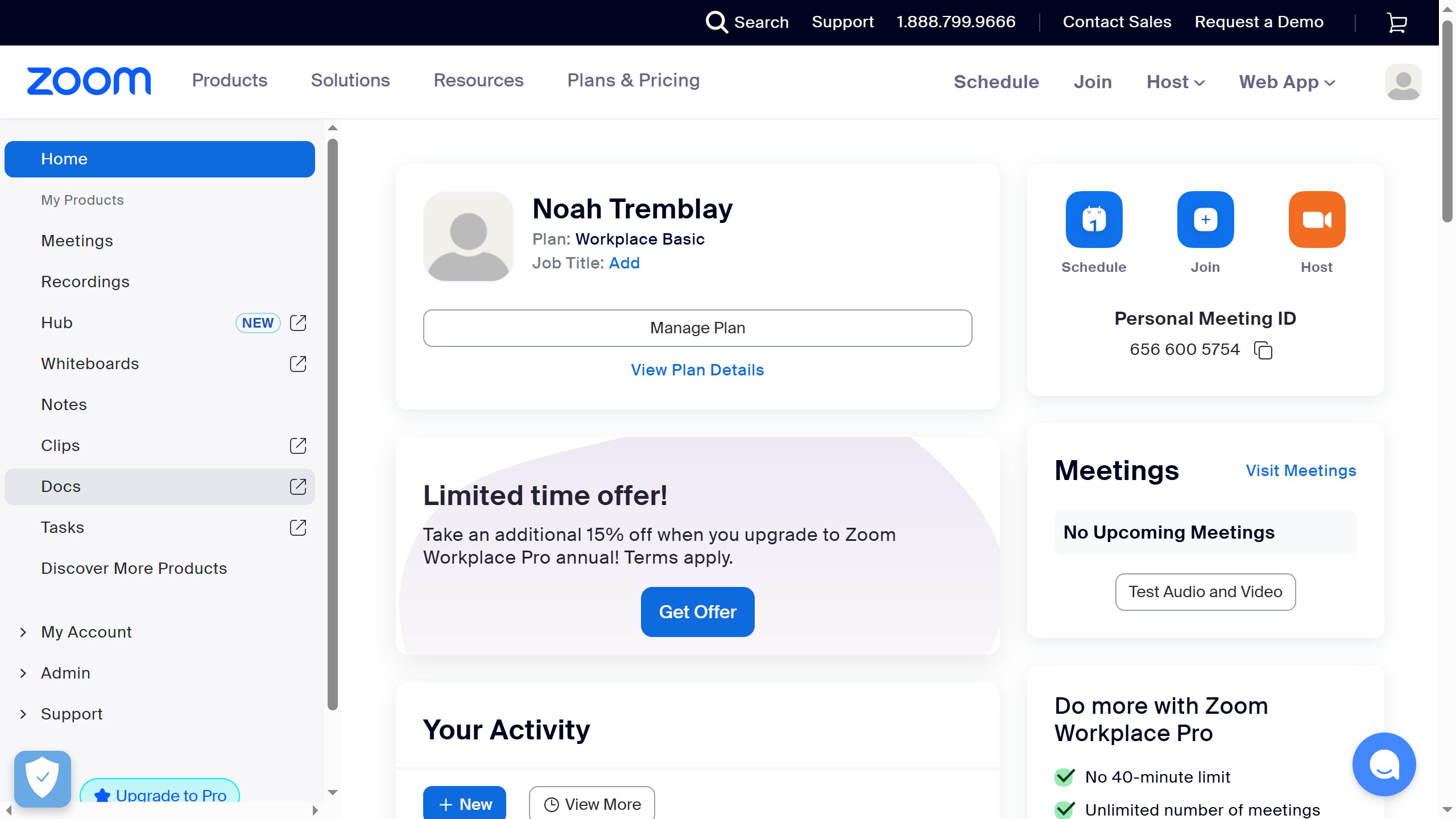
To begin, access the task management section by clicking on the "Tasks" option located in the left-hand navigation menu of your Zoom interface.
- Access My Tasks
Once in the Tasks section, ensure you are viewing your personal tasks by selecting "My tasks" from the sub-menu on the left. This displays your current task list.
- Initiate New Task Creation
To add a new task, click the "Create task" button, which is represented by a plus icon, found at the top-left corner of your task list.
- Enter Task Details
A popup window will appear. Type the name of your task into the "Task title" field. You can also specify a due date, add a description, assign collaborators, and set priority.
- Confirm Task Creation
After filling in the necessary details for your task, click the "Create" button at the bottom right of the popup window to save your new task.
Your turn to show how it works.
Build a walkthrough of your product with Saltfish, then share it with your customers.
Frequently Asked Questions
The 'Tasks' section is located in the left-hand navigation menu of your Zoom interface, typically below other options like 'Meetings' and 'Recordings'.
 Zoom
Zoom