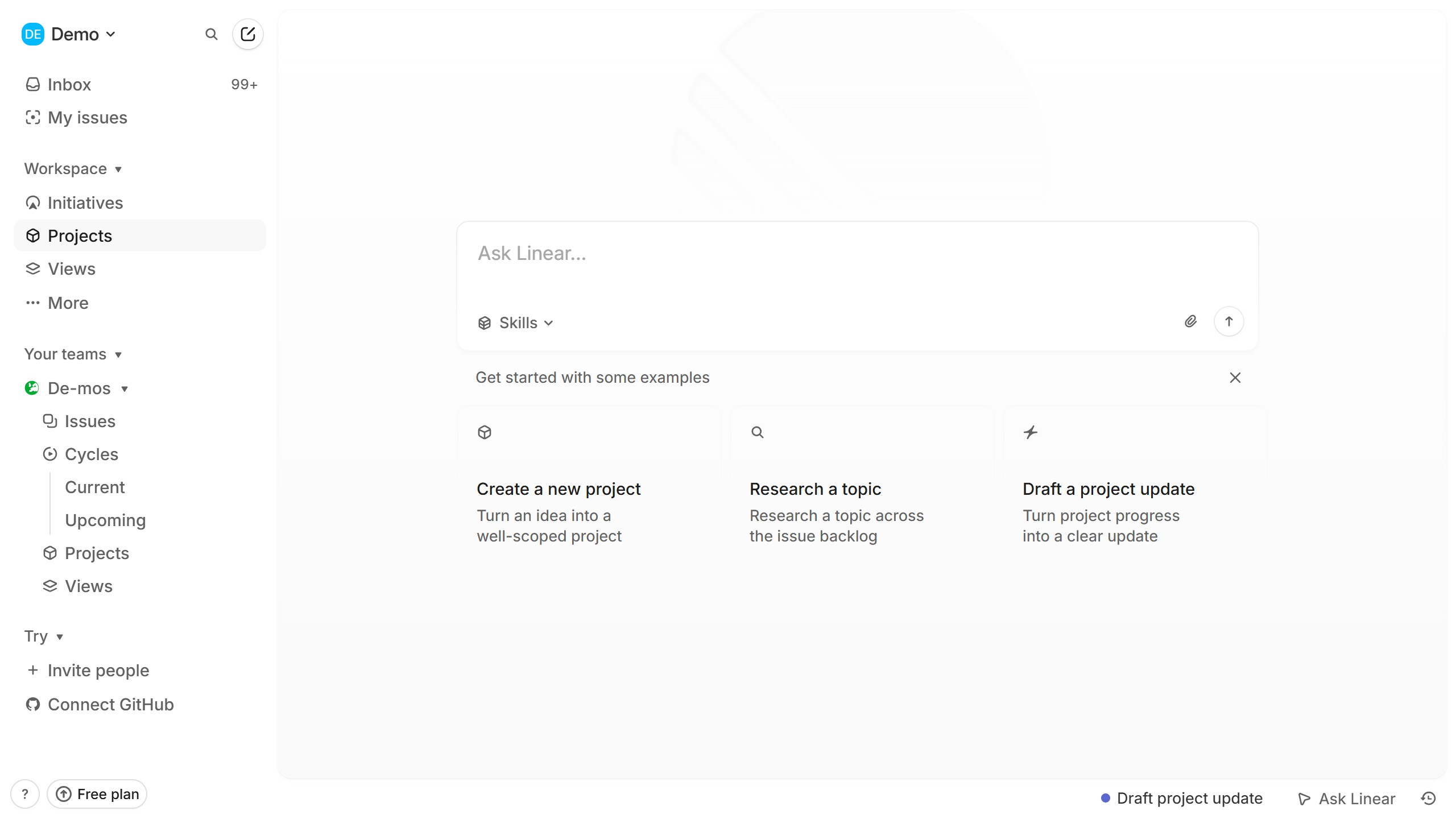
How to Activate a Member in Linear
In this article
This guide will walk you through the process of activating a member in Linear. Activating a member allows them to regain access to your workspace and participate in projects and issues.
Explore more Linear tutorials with interactive Saltfish walkthroughs.
Here's how to activate a member in Linear
- Open the Workspace Menu
To begin, click on the name of your current workspace, typically found in the top-left corner of the Linear interface. This action will reveal a dropdown menu with various workspace-related options.
- Navigate to Member Settings
From the workspace dropdown menu, select "Invite and manage members." This will take you to the dedicated page where you can view and manage all members within your Linear workspace.
- Locate the Inactive Member
On the Members page, scroll down to the "Inactive" section. Find the specific member you intend to activate and click the three dots icon located at the far right of their row.
- Select the Activation Option
A small menu will appear next to the inactive member's name. Click on "Activate user..." to initiate the activation process for that specific individual.
- Confirm Member Activation
A confirmation dialog will pop up, asking you to confirm the activation. Review the details and click the "Confirm" button to finalize the activation of the member.
- Verify Activation Status
After confirmation, the member will move from the "Inactive" list to the "Active" list on the Members page, indicating they can now access the workspace.
Your turn to show how it works.
Build a walkthrough of your product with Saltfish, then share it with your customers.
Frequently Asked Questions
The 'Invite and manage members' option is found in the dropdown menu that appears after clicking your workspace name in the top-left corner of the Linear interface.

 Linear