How to Add a Whiteboard to a Document in Zoom Docs
In this article
This guide will show you how to embed a new whiteboard directly into an existing document within Zoom Docs. Whiteboards can be used for collaborative brainstorming, drawing, and visual organization.
Explore more Zoom tutorials with interactive Saltfish walkthroughs.
Here's how to add a whiteboard to a document in Zoom
- Access Zoom Docs
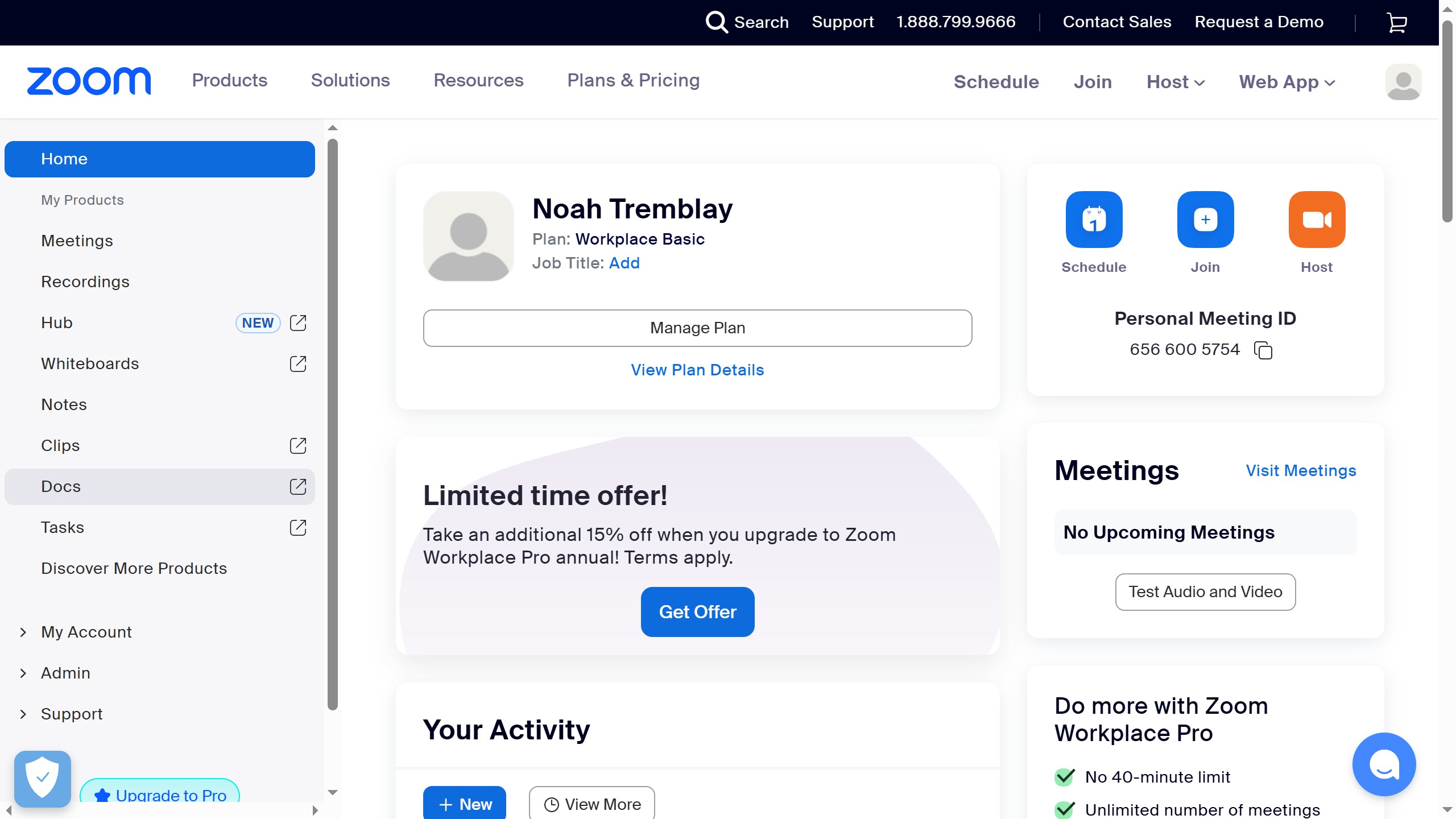
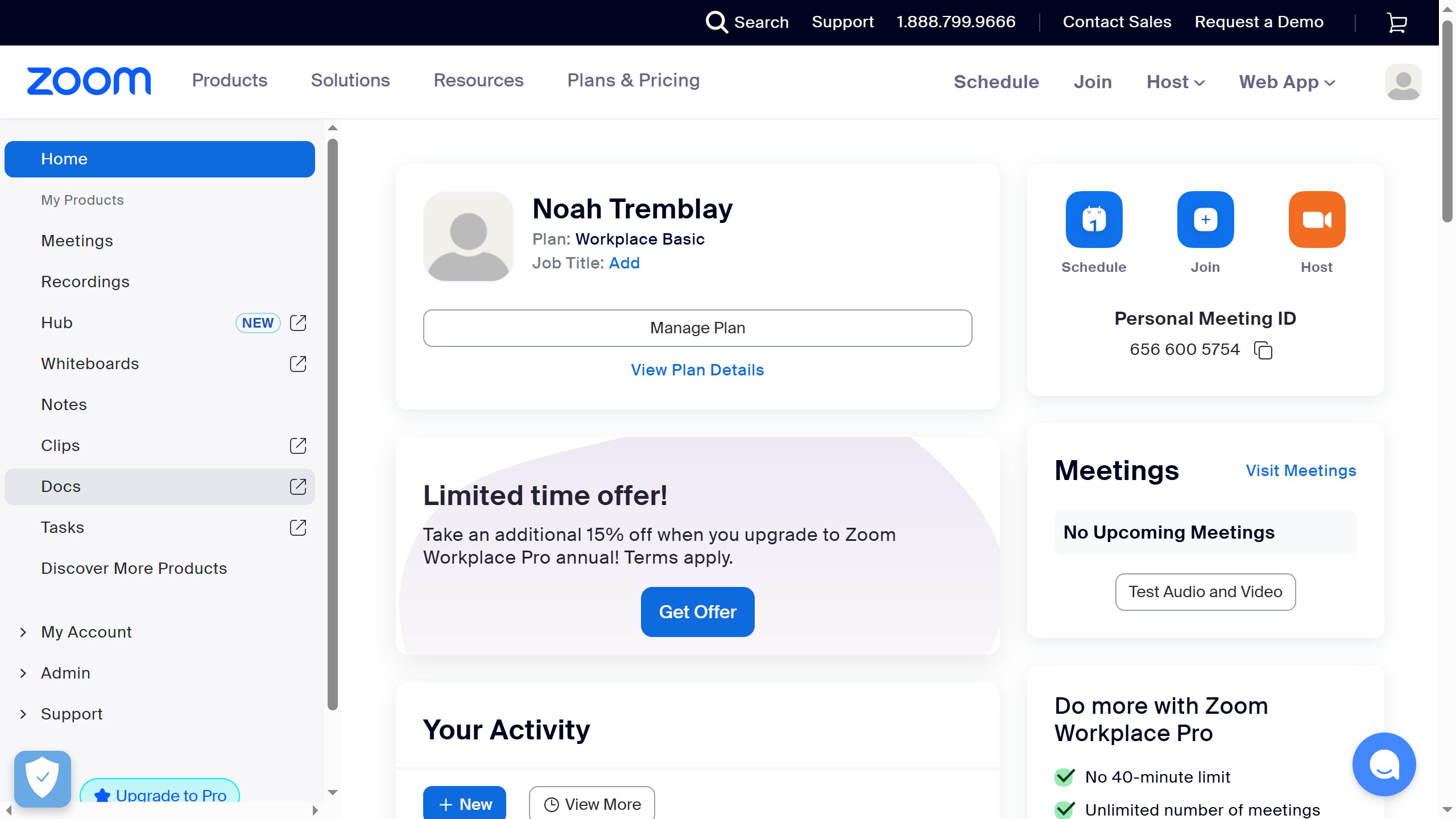
Begin by navigating to your Zoom homepage and clicking on the "Docs" option located in the left-hand navigation menu. This will take you to your document management area.
- Open a Document
Once in Zoom Docs, select and open the specific document where you intend to embed a whiteboard. Ensure you have the correct document open before proceeding.
- Initiate Content Addition
Within your open document, locate and click the "Add content" button, which is represented by a plus (+) icon. This action will reveal a menu of content types you can add.
- Select Whiteboard
From the menu that appears after clicking the "Add content" button, choose the "Blank whiteboard" option. This will create and embed a new, empty whiteboard into your document.
- Review Embedded Whiteboard
After selecting "Blank whiteboard," the new whiteboard will be automatically inserted and displayed within your document. You can now begin using it for your collaborative tasks.
Your turn to show how it works.
Build a walkthrough of your product with Saltfish, then share it with your customers.
Frequently Asked Questions
The "Docs" option is located in the left sidebar menu on your Zoom homepage, typically below other navigation items like "Meetings" and "Recordings."
 Zoom
Zoom