
How to Allow Viewers to Copy Data from a Shared View in Airtable
In this article
This guide will show you how to enable the option for viewers to copy data from a shared view in Airtable, allowing for easier data sharing and collaboration.
Explore more Airtable tutorials with interactive Saltfish walkthroughs.
Here's how to allow viewers to copy data from a shared view in Airtable
- Access Your Airtable Base
Begin by navigating to your Airtable base and opening the specific table that contains the view you wish to share with data copying enabled.
- Select the Desired View
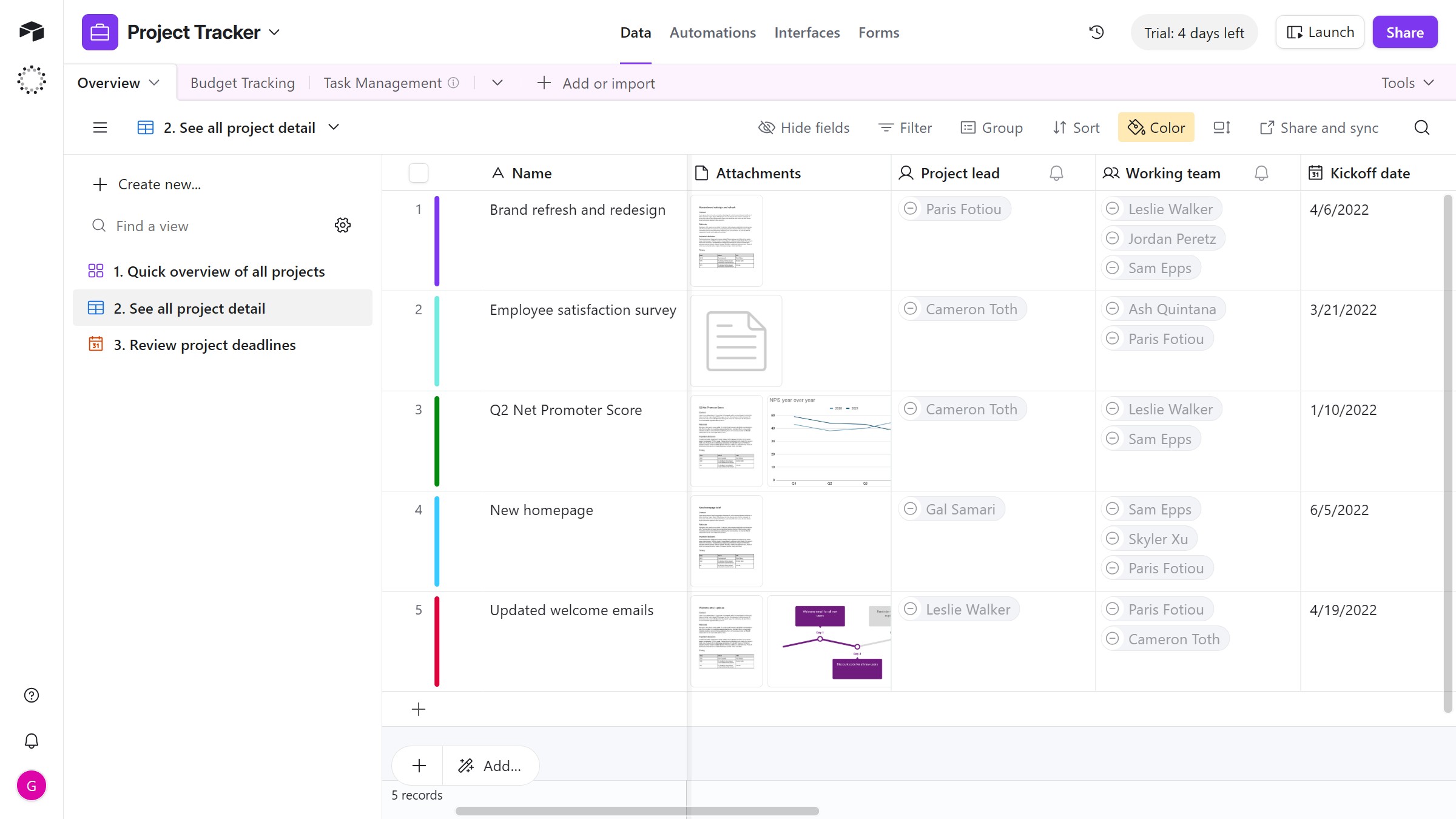
From the view sidebar, choose the particular view you want to share. This ensures that only the relevant data is accessible to viewers.
- Open Sharing Options
Locate and click the "Share and sync" button in the top right section of your Airtable interface to reveal the sharing options.
- Navigate to Link Settings
In the dropdown menu that appears, select "Link settings" to access the advanced options for your shared view link.
- Enable Data Copying for Viewers
Within the "Link settings" dialog, find and activate the toggle labeled "Allow viewers to copy data out of this view." This grants copying permissions.
- Confirm Setting is Active
Once the toggle is enabled, any viewer who accesses the shared link will now have the ability to copy records directly from your Airtable view.
Your turn to show how it works.
Build a walkthrough of your product with Saltfish, then share it with your customers.
Frequently Asked Questions
This option permits anyone with access to your shared view link to copy the data displayed within that specific view. It enhances data portability for your collaborators.
 Airtable

