
How to Align Text to the Right in a Note in Zoom
In this article
This guide will show you how to align text to the right within a note in Zoom. Follow these steps to easily format your notes for better organization and readability.
Explore more Zoom tutorials with interactive Saltfish walkthroughs.
Here's how to align text to the right in Zoom
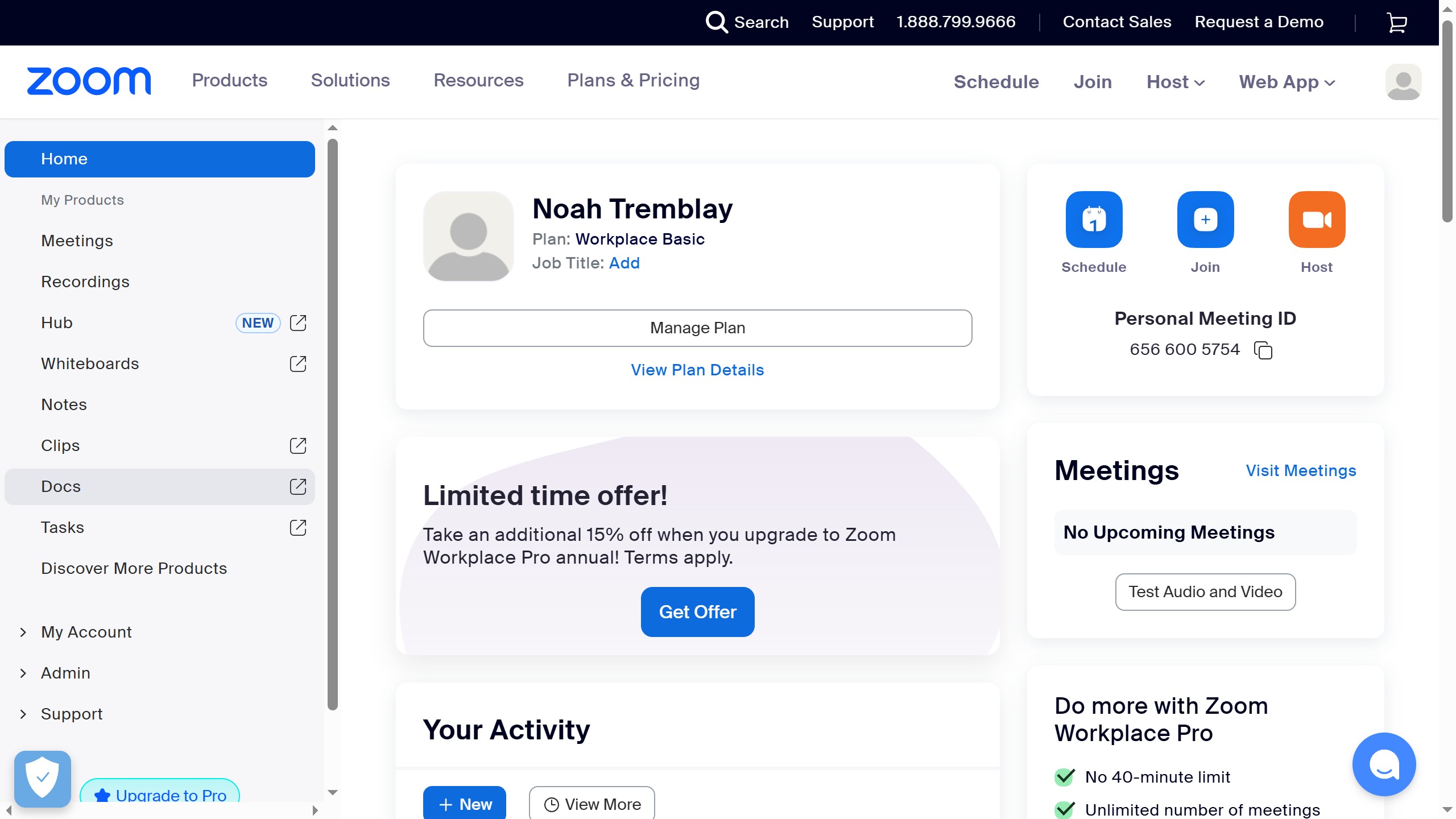
- Access Notes
From your Zoom dashboard, navigate to the left sidebar and click on the 'Notes' option to access your saved notes.
- Open a Note
On the Notes page, select and click the specific note you wish to edit and apply text alignment to.
- Highlight Text
Inside the opened note, highlight the specific text that you intend to align to the right.
- Open Format Options
Locate and click the 'Format Options' icon in the top toolbar of the note editor to reveal additional formatting tools.
- Select Text Alignment
Within the expanded formatting toolbar, click on the 'Text Align' icon to open the alignment choices.
- Align Right
From the dropdown menu, select 'Right' to instantly align your highlighted text to the right side of the note.
Your turn to show how it works.
Build a walkthrough of your product with Saltfish, then share it with your customers.
Frequently Asked Questions
Yes, after clicking the 'Text Align' icon, you will see options for 'Left', 'Center', and 'Right' alignment. You can choose any of these to format your text.
 Zoom

