How to Add Skills to Your Profile in Upwork
In this article
This guide will walk you through the process of adding new skills to your Upwork profile. Keeping your skills updated helps clients find you for relevant jobs.
Explore more Upwork tutorials with interactive Saltfish walkthroughs.
Here's how to add skills to your profile in Upwork
- Access Your Profile
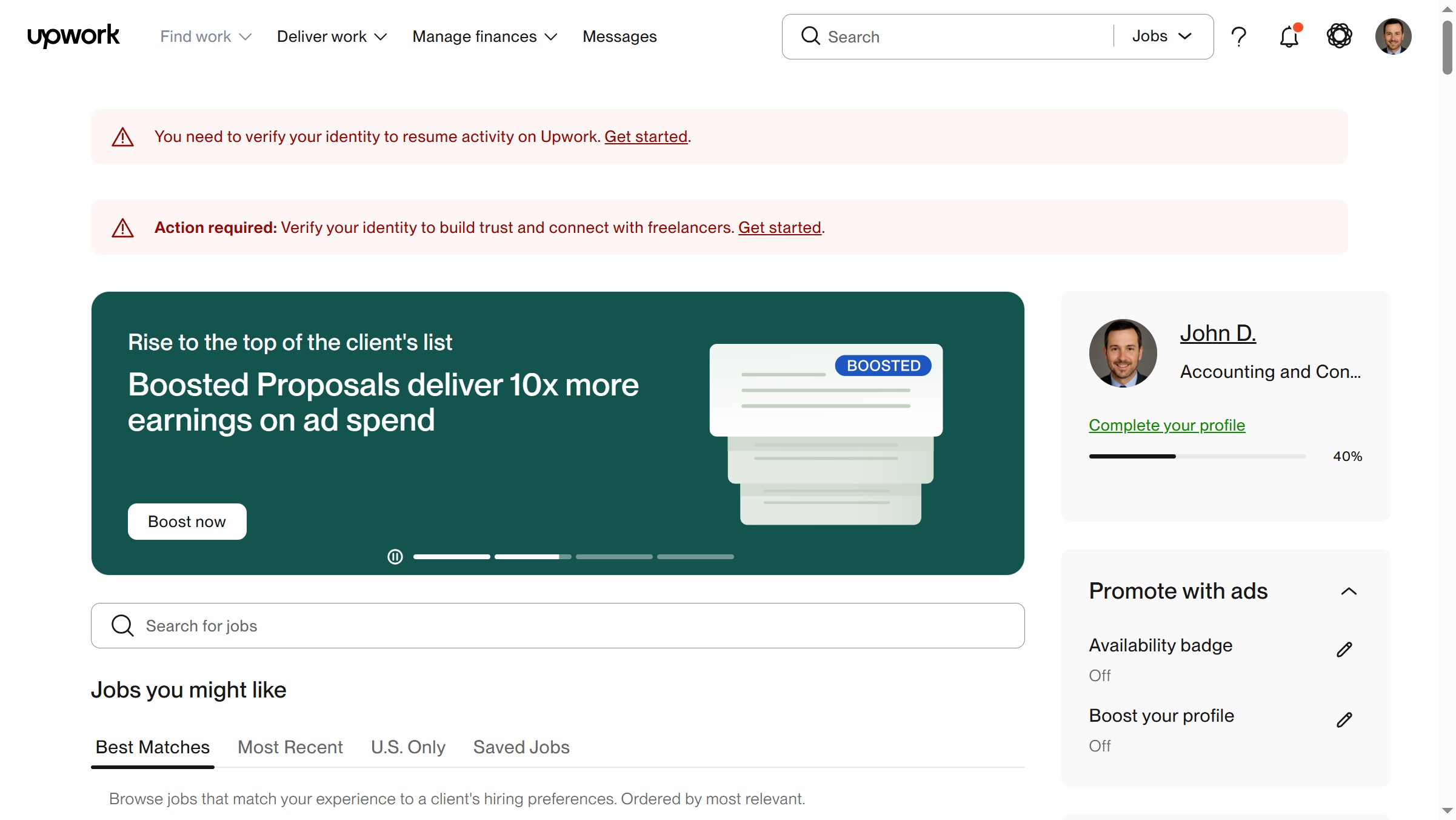
To begin, click on your profile icon located in the top right corner of the Upwork dashboard. From the menu that appears, select "Your profile" to navigate to your personal profile page.
- Locate the Skills Section
Once on your profile page, scroll down until you find the "Skills" section. This area displays all the skills currently listed on your profile.
- Open the Skills Editor
To add or modify your skills, click the pencil icon positioned next to the "Skills" heading. This action will open a modal window where you can manage your skills.
- Search and Select a Skill
In the "Edit skills" modal, type the name of the skill you wish to add into the "Search skills" input field. As you type, a list of suggested skills will appear. Click on the relevant skill from these suggestions.
- Save Your Changes
After selecting all the desired skills, click the "Save" button within the modal window. Your newly added skills will now be visible on your Upwork profile.
Your turn to show how it works.
Build a walkthrough of your product with Saltfish, then share it with your customers.
Frequently Asked Questions
You can add a maximum of 15 skills to your Upwork profile. This limit is displayed within the "Edit skills" modal.

 Upwork