
How to Add the Outlook Calendar Power-Up to a Trello Board
In this article
Integrate your Outlook Calendar directly into your Trello workflow by adding the Outlook Calendar Power-Up. This guide will walk you through the steps to enable this useful tool on any of your Trello boards, helping you manage tasks and events more efficiently.
Explore more Trello tutorials with interactive Saltfish walkthroughs.
Here's how to add the outlook calendar power-up to a trello board in Trello
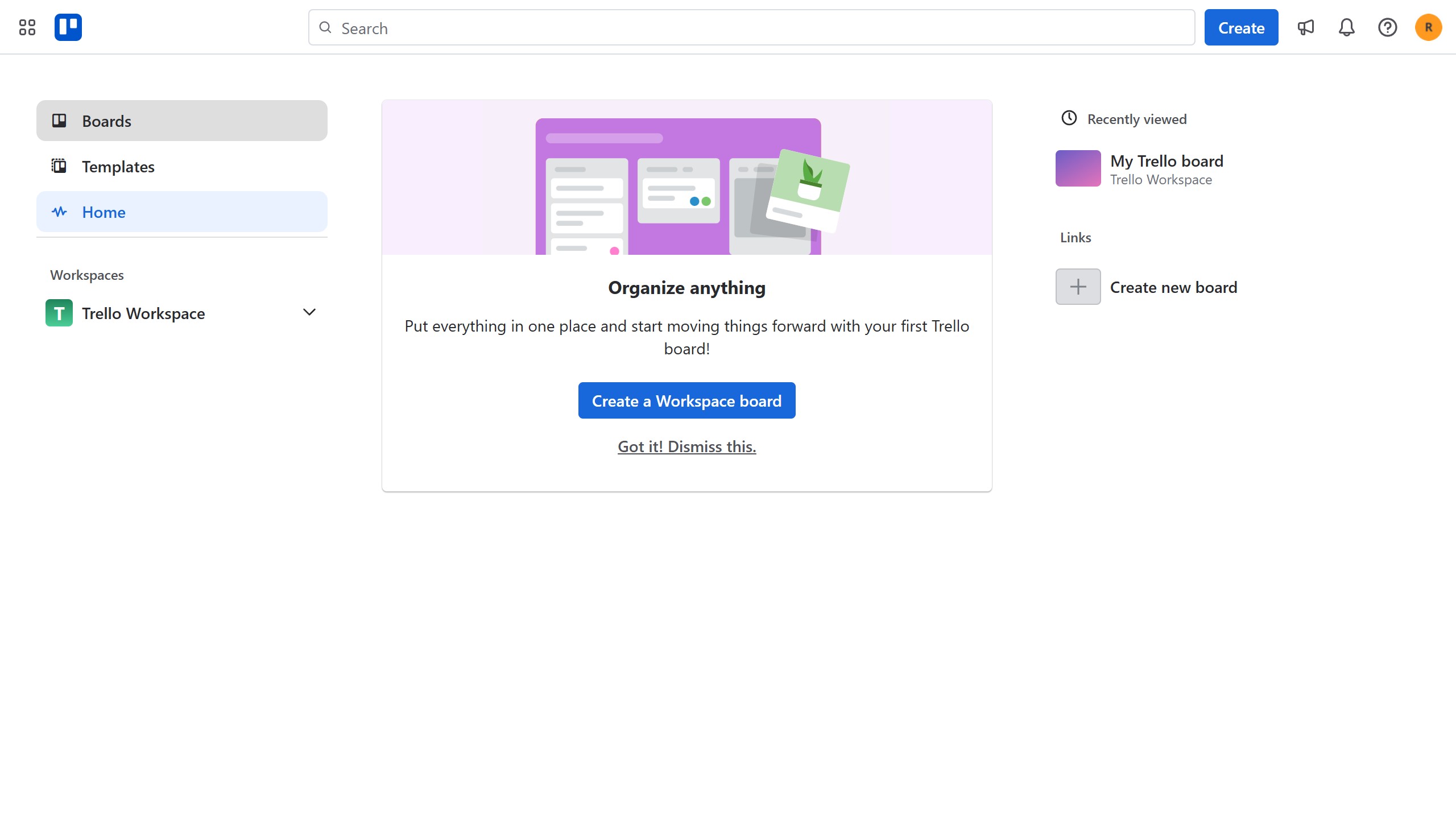
- Access Your Trello Board
Start by navigating to your Trello workspace and selecting the specific board where you want to integrate the Outlook Calendar Power-Up.
- Open the Board Menu
Once inside your chosen board, locate and click the three dots icon in the top-right corner to reveal the board's menu options.
- Navigate to Power-Ups
From the board menu, select "Power-Ups" to open the Power-Ups directory, where you can browse and add integrations to your board.
- Find the Outlook Calendar Power-Up
In the Power-Ups window, click "Communication & collaboration" in the left sidebar. Then, locate "Outlook Calendar for Trello by Kryl Solutions" and click its "Add" button.
- Confirm Installation
A confirmation dialog will appear. Click "Add" again to finalize the installation of the Outlook Calendar Power-Up to your Trello board.
Your turn to show how it works.
Build a walkthrough of your product with Saltfish, then share it with your customers.
Frequently Asked Questions
The "Power-Ups" option is located within your Trello board's menu. Click the three dots icon in the top-right corner of your board to open the menu and find it.
 Trello

