
How to Add the join.me Power-Up to a Trello Board
In this article
Learn how to integrate the join.me Power-Up into your Trello board to easily attach persistent meeting links to your cards, streamlining your meeting management and collaboration.
Explore more Trello tutorials with interactive Saltfish walkthroughs.
Here's how to add the join.me power-up to a trello board in Trello
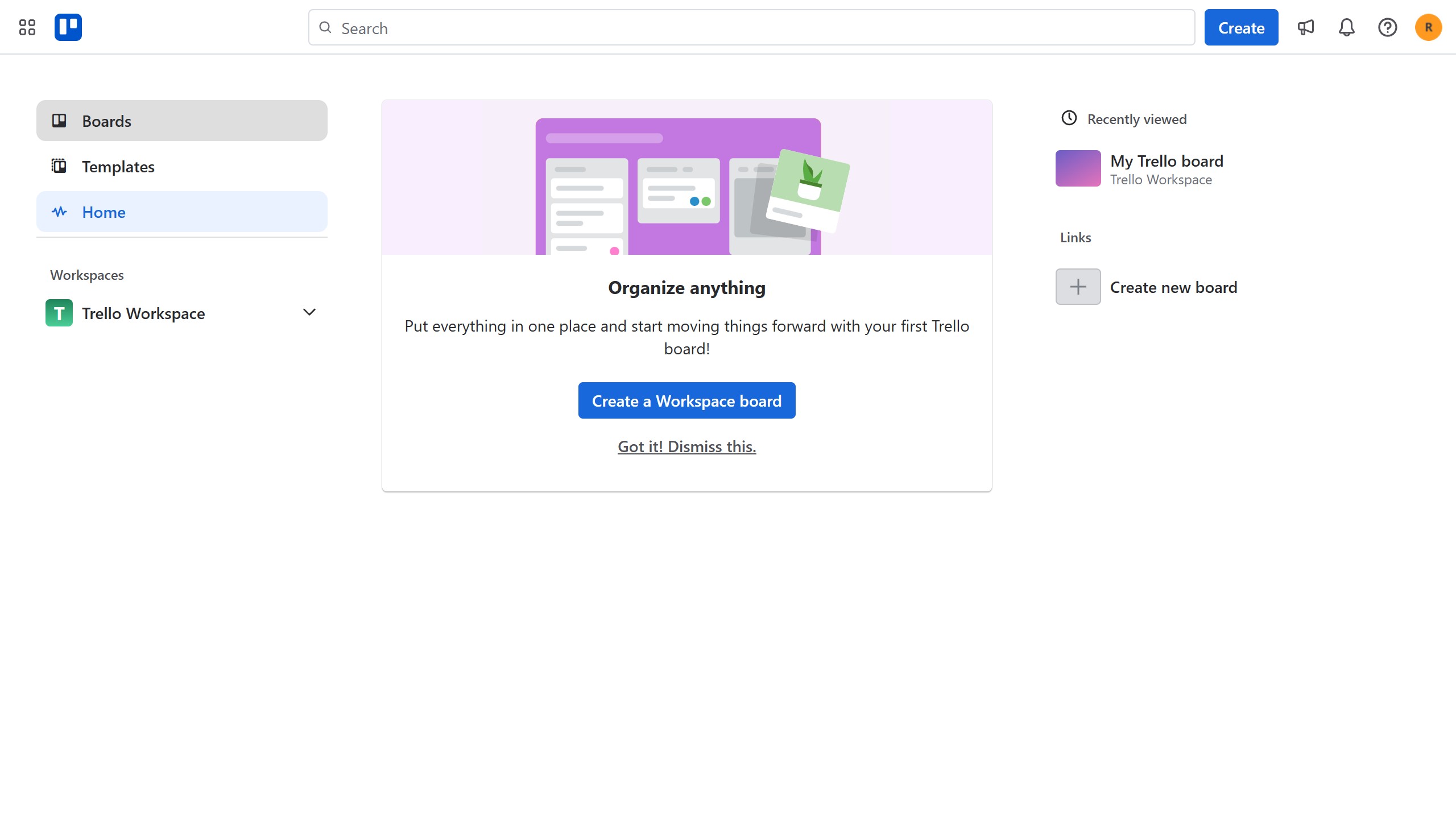
- Navigate to Your Boards
Start by accessing your Trello boards from the main dashboard. This will display all your available boards.
- Open a Trello Board
Select the specific Trello board where you intend to add the join.me Power-Up. Click on the board's card to open it.
- Access Board Menu
Click the "More" options button, represented by three horizontal dots, located in the top-right corner of your open board to reveal the board menu.
- Go to Power-Ups
From the opened board menu, select the "Power-Ups" option. This action will take you to the Power-Up marketplace.
- Select Communication & Collaboration Category
In the Power-Ups window, choose the "Communication & collaboration" category from the left sidebar to filter the available Power-Ups.
- Add join.me Power-Up
Scroll through the listed Power-Ups, find "join.me", and click the "Add" button associated with it to initiate the installation.
- Confirm Installation
A confirmation dialog will appear. Click the "Add" button within this dialog to finalize the installation of the join.me Power-Up to your selected board.
- Verify Power-Up is Enabled
After successful installation, the join.me Power-Up will be listed under the "Enabled" section in your Power-Ups settings, confirming it's active.
Your turn to show how it works.
Build a walkthrough of your product with Saltfish, then share it with your customers.
Frequently Asked Questions
The join.me Power-Up attaches a persistent meeting that anyone can start or join to the board via a link in the board header, facilitating quick meetings.
 Trello
