How to Allow Anyone to Add You to Groups in Microsoft Teams
In this article
This guide will show you how to adjust your privacy settings in Microsoft Teams, allowing anyone to add you to groups, not just your existing contacts.
Explore more Microsoft Teams tutorials with interactive Saltfish walkthroughs.
Here's how to allow anyone to add you to groups in Microsoft Teams
- Access More Options
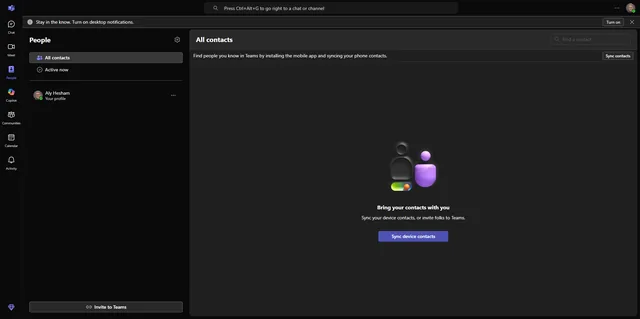
To begin, open Microsoft Teams and locate the 'More options' icon, represented by three dots, in the top-right corner of your screen. Clicking this icon will reveal a dropdown menu with various settings and options.
- Open Settings
From the dropdown menu that appears, select 'Settings'. This action will open the main settings panel for your Microsoft Teams account, where you can customize various aspects of your user experience.
- Navigate to Privacy Settings
Within the Settings panel, look for the left sidebar menu. Click on 'Privacy' to access your privacy-related configurations. This section controls how others can interact with you on Microsoft Teams.
- Locate Group Invitation Settings
In the Privacy settings, find the option labeled 'Manage who can add you to groups'. This setting determines who has permission to add you to group chats or teams. Click the dropdown arrow associated with this option.
- Select "Anyone" for Group Invitations
A dropdown list will appear with choices for who can add you to groups. Select 'Anyone' to allow all users, regardless of whether they are in your contacts, to add you to groups in Microsoft Teams. Your changes are saved automatically.
Your turn to show how it works.
Build a walkthrough of your product with Saltfish, then share it with your customers.
Frequently Asked Questions
The 'More options' icon is represented by three horizontal dots and is located in the top-right corner of the Microsoft Teams interface, next to your profile picture.

 Microsoft Teams